On this page
The best scanner you own is already in your pocket. Modern iPhones capture documents sharp enough to replace a desktop scanner for almost everything, from receipts and contracts to handwritten notes and ID cards. The trick is knowing how to get clean results and how to keep them organized. Here is a practical guide.
Your iPhone Already Scans
Before downloading anything, know that iOS has scanning built in. The Notes app can scan documents directly, and the Files app can create a scan and save it as a PDF. Both use the camera to detect the edges of a page, correct the perspective, and produce a tidy digital copy.
These built-in tools are genuinely good for occasional scans. If you only need to capture the odd form now and then, they may be all you require. The limits show up when you scan often, need reliable text recognition, or want your documents organized in a way that you can actually search later.
Tips for Clean, Sharp Scans
The difference between a scan that looks professional and one that looks like a hurried photo comes down to a few habits.
Light It Well
Good, even lighting is the single biggest factor. Natural daylight near a window is ideal. Avoid harsh overhead light directly above the page, which creates glare, and watch for your own shadow falling across the document. Diffuse, even light gives you crisp text and true colours.
Use a Contrasting Background
Place the document on a surface that contrasts with the paper. A white form on a dark table lets the scanner detect edges instantly and crop accurately. A white page on a white desk confuses edge detection every time.
Hold Steady and Square
Position your phone directly above the page, parallel to it, rather than at an angle. Keeping the camera square minimises the perspective correction the app has to do, which keeps text sharper. Steady hands or resting your elbows on the table reduce blur.
Flatten the Page
Creases and curls cast small shadows and distort text. Smooth the paper flat first. For a stubbornly folded document, a heavy book along one edge works wonders.
Why OCR Changes Everything
A plain scan is just a picture of a page. You cannot search it, copy text from it, or find it later by its contents. Optical Character Recognition, or OCR, is what turns that picture into usable text.
With OCR, your scanned contract becomes searchable, so you can find it months later by typing a word it contains. You can copy a paragraph out of a scanned letter, or pull a number from a receipt without retyping it. For anyone who scans regularly, OCR is the feature that separates a photo archive from a real document system. It is the reason a dedicated scanning app is often worth it over the basic built-in tools.
Going Paperless Without the Chaos
The dream of a paperless life falls apart if scans pile up in a disorganized heap. A scan you cannot find is no better than a lost piece of paper. A few principles keep things sane:
- Name files clearly. A consistent naming habit, such as date plus a short description, makes everything findable.
- Use folders or categories. Group by type, such as receipts, contracts, medical, and taxes.
- Scan at the point of arrival. Deal with a document when it lands rather than letting a physical pile grow.
- Back it up. Store scans in cloud storage so a lost phone never means lost paperwork.
Consistency beats perfection. A simple system you actually follow is worth more than an elaborate one you abandon.
Choose the Right File Format
How you save a scan matters as much as how you capture it. For most documents, PDF is the right choice. It keeps multi-page files together as a single item, preserves layout, prints reliably, and is universally accepted by banks, offices, and government portals. Save an image format only when you specifically need a photo rather than a document, such as capturing a diagram to drop into a message. When you scan several pages of the same document, always combine them into one multi-page PDF rather than leaving loose images scattered around. A single tidy file is far easier to send, store, and find later than a handful of separate pictures.
Handle Sensitive Documents Carefully
Scans often contain private information, including bank details, medical records, and identity documents. Treat those files with the same care you would the paper originals. Store sensitive scans in a secure, backed-up location rather than a shared camera roll, and be deliberate about what you send and to whom. Before emailing or uploading anything containing personal data, pause and confirm the recipient and destination are ones you trust. A moment of care here prevents the kind of accidental oversharing that is hard to undo.
When a Dedicated Scanner App Helps
The built-in tools are fine for the occasional page. A dedicated scanner app earns its place the moment scanning becomes a regular part of your life. You will feel the difference if you scan multi-page documents often, rely on searchable text, want batch scanning, or need consistent quality across a large archive.
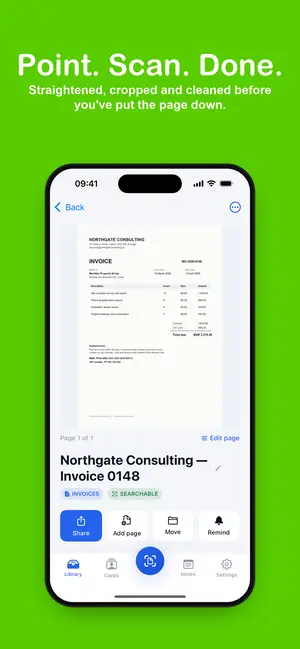
This is where DocyScan fits in. It is built specifically for turning your iPhone into a proper document scanner, with automatic edge detection, clean output, text recognition so your documents become searchable, and easy export to PDF. Instead of juggling scattered scans across Notes and Files, you get a purpose-built workflow that keeps quality high and your documents organized in one place. For freelancers, students, and anyone chipping away at a paperless goal, a focused tool removes the everyday friction.
Find out more on the DocyScan page.
A Quick Scanning Checklist
Before you tap capture, run through this:
- Is the lighting even and glare-free?
- Does the background contrast with the page?
- Is the phone square and steady above the document?
- Is the page flat and uncreased?
- Will the result be saved somewhere you can find it again?
Five seconds of setup produces a scan you never have to redo.
The Takeaway
Your iPhone is a serious scanning tool when you use it well. Nail the lighting, keep the camera square, and flatten the page for sharp results. Lean on OCR so your documents are searchable rather than just stored. Build a naming and folder habit so nothing gets lost. And when scanning becomes part of your routine, a dedicated app turns a good camera into a proper paperless system. The path to a clutter-free filing cabinet starts with the device already in your hand.
Written by PG App Studios
An independent app studio in the Algarve run by Pedro Gregório. We write about the problems our apps solve, from learning European Portuguese to raising a toddler.